First steps
Onboarding (macOS app)
The macOS app's first-run flow: pick where the Gateway runs, install any missing local runtime, and connect a verified AI backend. The app then opens guided onboarding in the dashboard for optional setup and the handoff to your agent. For CLI onboarding and a comparison of both paths, see Onboarding Overview.
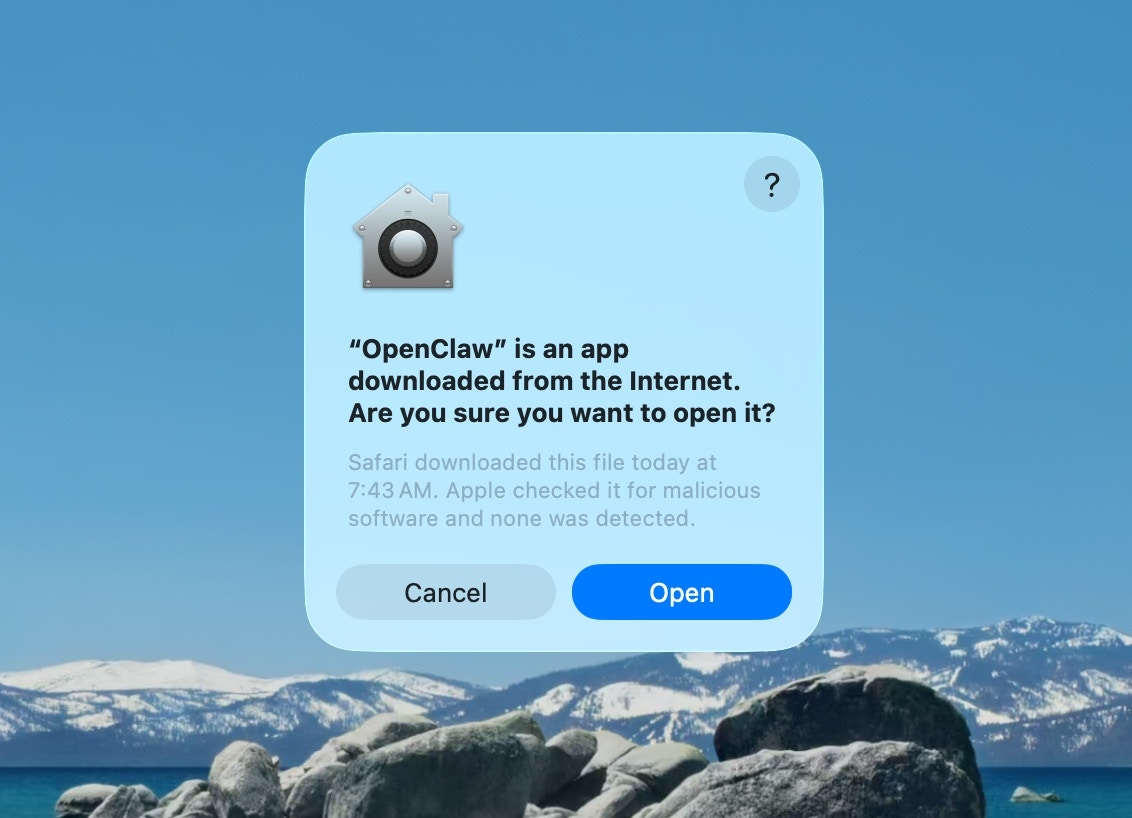
Approve macOS warning
The first time you open OpenClaw.app, macOS asks you to approve a downloaded app. Click Open to continue.
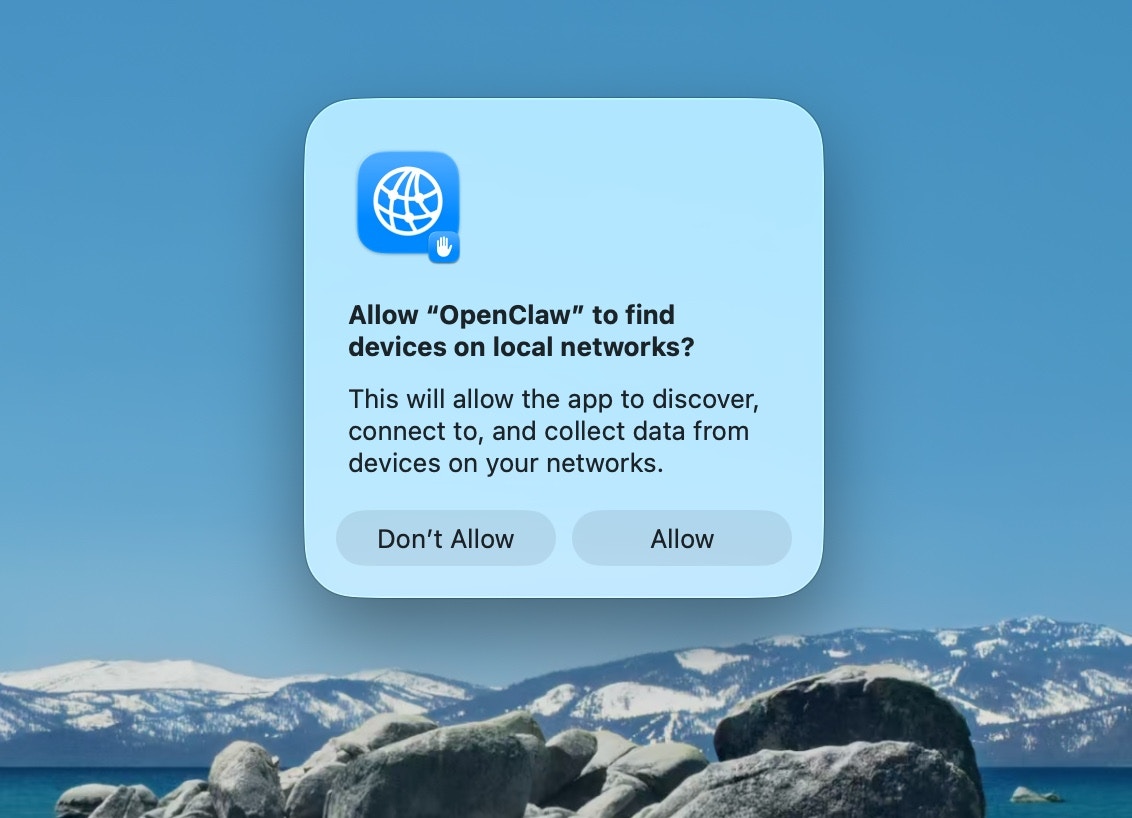
Approve find local networks
macOS then asks whether OpenClaw may find devices on your local network. Click Allow. The app uses this to reach a Gateway on another machine.
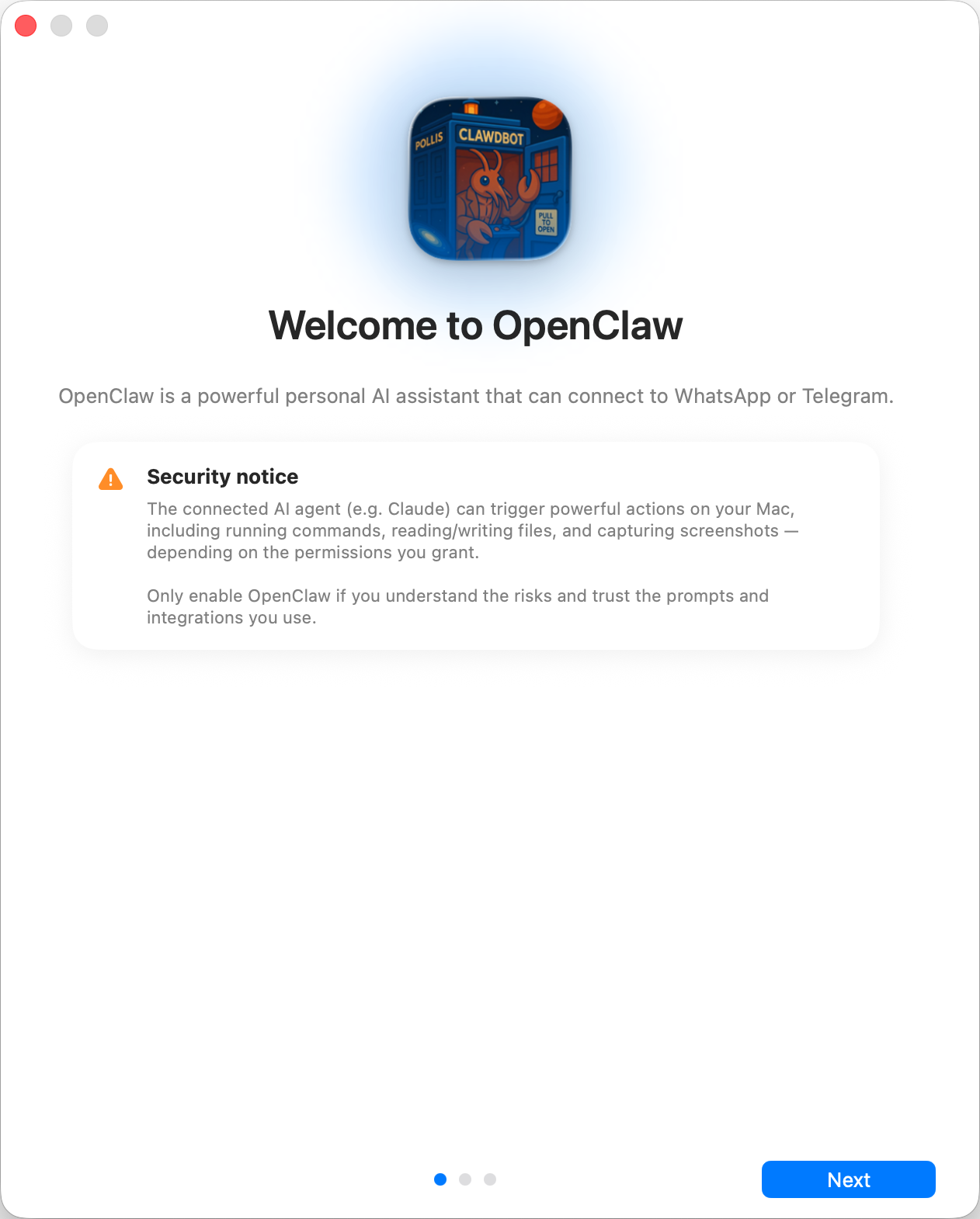
Welcome and security notice
The app opens on its welcome screen with the security notice. Read the notice, then continue when you accept the trust model below.
Security trust model:
- By default, OpenClaw is a personal agent: one trusted operator boundary.
- Shared/multi-user setups need lock-down: split trust boundaries, keep tool access minimal, and follow Security.
- Local onboarding defaults new configs to
tools.profile: "coding"so fresh setups keep filesystem/runtime tools without the unrestrictedfullprofile. - If hooks/webhooks or other untrusted content feeds are enabled, use a strong modern model tier and keep strict tool policy/sandboxing.
Local vs Remote
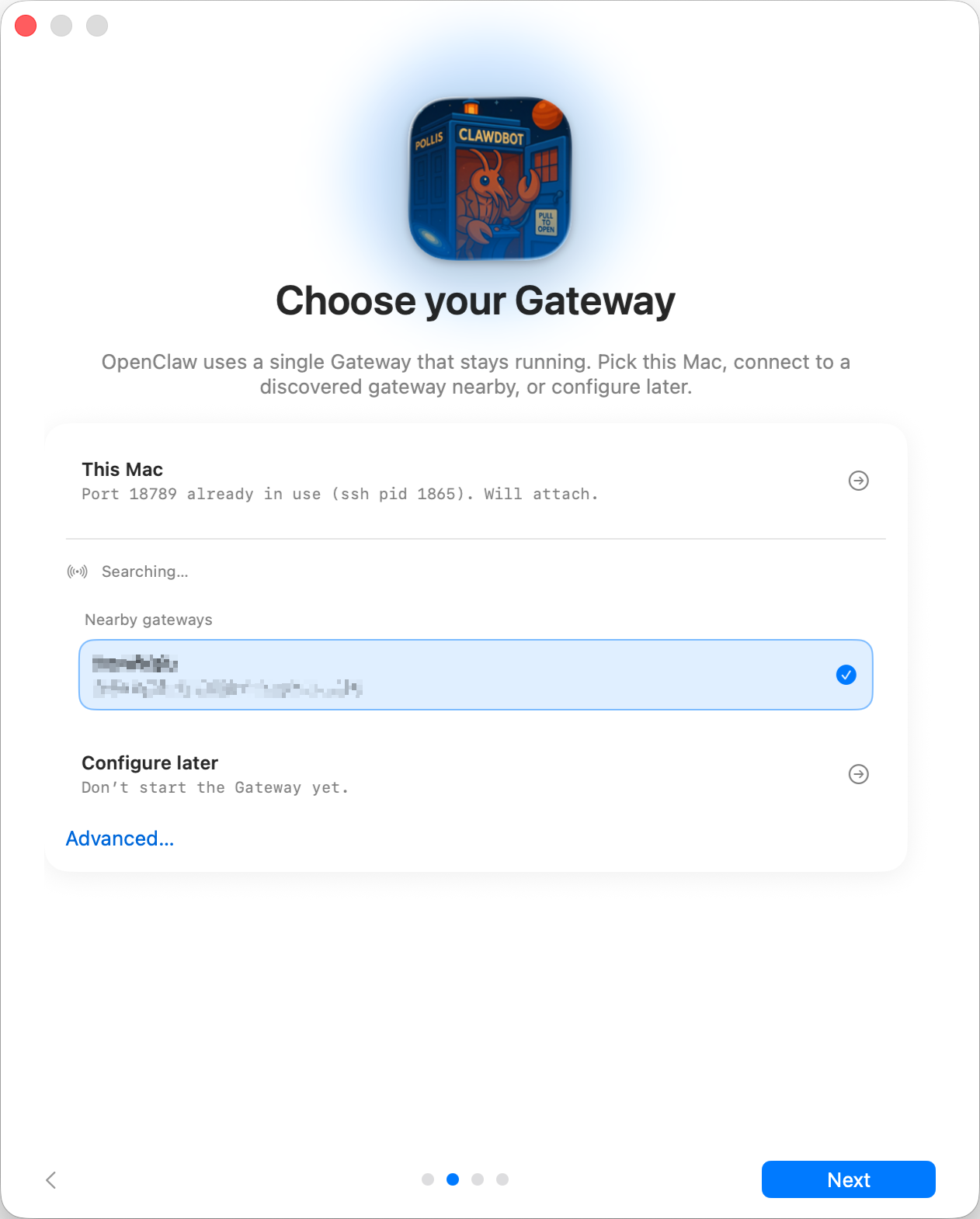
Where does the Gateway run?
- This Mac (Local only): onboarding configures auth and writes credentials locally.
- Remote (over SSH/Tailnet): onboarding does not configure local auth;
credentials must already exist on the gateway host. The remote gateway token
field stores the token the macOS app uses to connect to that Gateway;
existing
gateway.remote.tokenSecretRef values are preserved until you replace them. - Configure later: skip setup and leave the app unconfigured.
CLI
Local setup reuses a compatible CLI installation or uses the bundled installer
to install openclaw and Node in a private managed runtime. It does not require
a global npm, pnpm, or bun install.
Attaching to an independently managed local Gateway skips CLI installation and proceeds to AI checks without taking over its CLI or service installation. See Gateway on macOS.
Connect your AI
If the connected Gateway already has a configured agent model, it appears as Current model. Select it to verify that exact route with a real completion and open the normal dashboard. Opening onboarding does not test an existing route or choose a different provider.
Once the Gateway is ready, onboarding looks for AI access you already have:
a Claude Code or Codex login, OPENAI_API_KEY / ANTHROPIC_API_KEY, or a
tool-capable model with at least 16K of measured effective context already
loaded in a reachable LM Studio or Ollama server. Detection runs on the
Gateway host, including when the macOS app connects to a Linux Gateway. Detection
only presents choices: it does not test, activate, install, or save any candidate.
Select the connection you want before OpenClaw saves any returned credential and runs one
confirmation turn without tools. It activates the connection only after success.
In particular, an existing Codex subscription is never selected automatically.
If setup fails, the app keeps the detailed reason visible so you can retry or
choose another connection. Local discovery never pulls or downloads a model.
Ollama checks /api/ps for loaded models; an eligible
model that is only installed on disk requires explicit setup through
Choose connection → Local only. See Ollama.
The provider picker is built from installed manifests and OpenClaw's official provider-plugin catalog, so installable providers such as Meta appear before their plugin is present. When a connection needs a runtime plugin, the app and dashboard show the staged package's source and capabilities, with integrity when available before installing or enabling it, including verified first-party packages. Review the details, then explicitly confirm acceptance to continue. Declining or confirmed cancellation stops that attempt without selecting another inference route. If the confirmation turn fails, the app shows the failure and keeps the saved credential. Choose the saved sign-in in Model Setup to retry without signing in again. Runtime plugins installed for that attempt are kept.
Fresh installs also ask whether existing native provider conversations should
appear in the sidebar. This is discovery in place, not transcript copying, and is
off until selected. Turning it off persists sessionCatalog.enabled=false for
the available native catalog plugins; existing upgraded installations keep their
current behavior.
For a custom OpenAI- or Anthropic-compatible endpoint on a local Gateway, choose
Custom OpenAI/Anthropic-compatible endpoint and complete the Gateway-owned
wizard. When the Gateway is remote, the Mac does not collect that host's secret;
run openclaw onboard --auth-choice custom-api-key on the Gateway host, then
return to the app and refresh detection.
If the result is uncertain or settings may already have been saved, the app keeps replacement setup blocked while it checks the Gateway. Check again repeats that check without starting another activation; it does not discard the pending attempt or shorten its wait. If reconciliation still cannot confirm completion after the wait, the app returns to connection choices with the error visible instead of automatically retrying a detected credential. Retry that connection or choose another one to start a new activation.
The macOS setup sheet shows the selected provider and current activity with a spinner while the Gateway works. Plugin installation does not estimate a completion percentage. Review prompts and input controls appear when an answer is needed; installation and the final live AI test stay in the same flow.
After you choose Cancel, wait for confirmation. The Gateway may need to finish an operation that has already reached its commit point. If cancellation cannot be confirmed, the sheet says setup may still be running and lets you retry Cancel.
To use a Claude subscription when the Gateway host has no Claude CLI login, run
claude setup-token on any machine with Claude Code installed, then paste the
printed token as Anthropic setup-token under Connect with an API key or
token.
Pi and OpenCode installs may be shown for context when they cannot be selected as the reusable guided-setup inference route. They are whole-agent harnesses, not setup inference routes; their session integrations require separate runtime and plugin setup. Gemini CLI and Antigravity are not offered as detected setup routes.
You can also sign in through the provider's own OAuth or device-pairing flow. The built-in choices include OpenAI/ChatGPT, OpenRouter, GitHub Copilot, xAI, MiniMax Global and CN, and Chutes. Google is available through the supported AI Studio API-key route. The list comes from the Gateway's active text-inference provider plugins rather than a fixed app list, so another provider can opt in without adding provider-specific macOS code.
The manual key/token picker uses the same provider registry. In every route, the provider supplies its starter model and configuration. If the starter is an alias, OpenClaw tests and saves the provider's canonical model name while preserving existing model settings that the starter does not replace. A replacement credential stays inactive until you accept Activate this saved sign-in? after verification. Declining keeps your current connection and the saved replacement. Setup preserves unrelated configuration edits made during verification. If the same connection settings change, review them and retry the saved sign-in instead of overwriting the newer settings. Continuing remains locked until one backend has passed, so the first agent chat cannot start without working inference.
Continue in the dashboard
After a new model passes its live check, native setup closes and opens guided onboarding in the dashboard. OpenClaw helps configure the remaining workspace, Gateway, channels, and other optional features, then hands you off to normal agent chat. A verified pre-existing model opens the normal dashboard instead.
Memory import is part of guided setup, not a separate native onboarding page.
For a local Gateway, supported sources include Claude Code auto-memory, Codex
consolidated memories, and Hermes memory files. Selected memories are copied
into the agent workspace under memory/imports/ for indexed recall;
already-imported files are skipped. Import is optional and remains available
later under Settings → Import Memory, with per-file control.
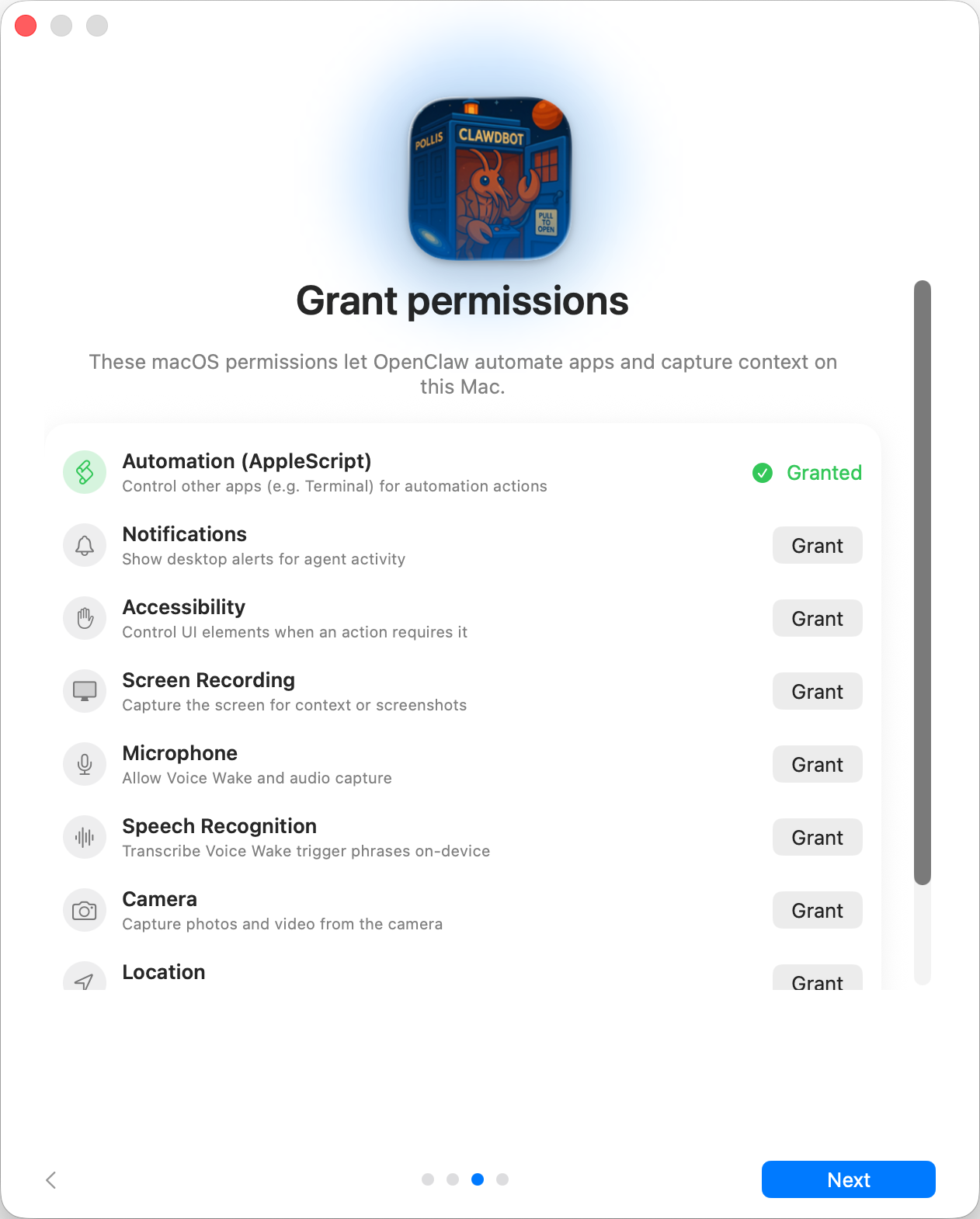
There is no separate native permissions walkthrough before this handoff. Grant macOS access for the features you want to use from Settings → Permissions. Available permissions include Automation (AppleScript), Notifications, Accessibility, Screen Recording, Microphone, Speech Recognition, Camera, and Location. See macOS permissions for grant and recovery guidance.
See Bootstrapping for what happens on the Gateway host during the agent's first real turn. OpenClaw remains available later under Settings → OpenClaw.